

Your Instagram search box isn’t just a shortcut; it’s a mirror of what Instagram thinks you look for and care about. When old or irrelevant searches pile up, it can drive recommendations in the wrong direction, which makes learning how to clear Instagram search important.
The process is easy. Whether you want to remove individual suggestions from the search box, clear your recent searches, or even tidy up your search results when typing, there is always a way to get rid of each situation.
How to Clear Instagram Search Suggestions
Instagram search history is simply the list of accounts, hashtags, places, and keywords you’ve typed into the Instagram search bar, and can be cleared in 2 easy ways.
To change your Instagram search suggestions, you can follow these steps:
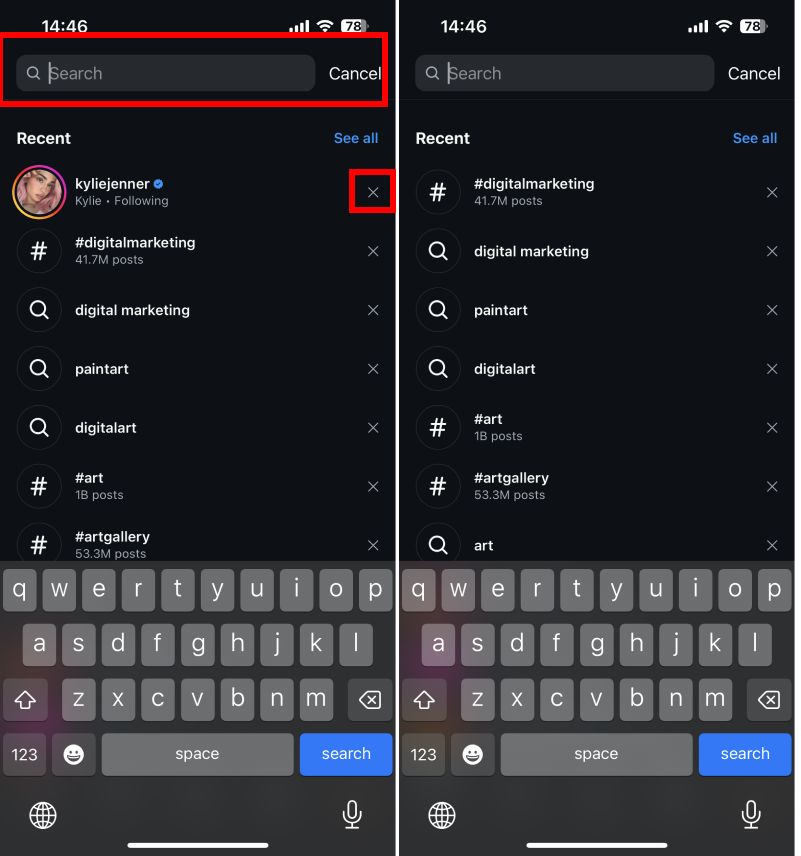
Remove Individual Suggestions
- Go to the Search tab.
- Tap on the search bar at the top of the screen. As you start typing, Instagram will show recent searches and popular accounts.
- To remove specific suggestions, tap the “X” next to each suggestion you want to delete.
Clear All Instagram Search History
Your Instagram search history is a saved log of recent searches; clearing it removes those records, improves privacy, and refreshes the app’s future suggestions.
- Open the Instagram app and tap your profile (bottom right).
- Tap the menu (three lines) → Account Center → Your Information and permissions → search history→ Clear all searches.
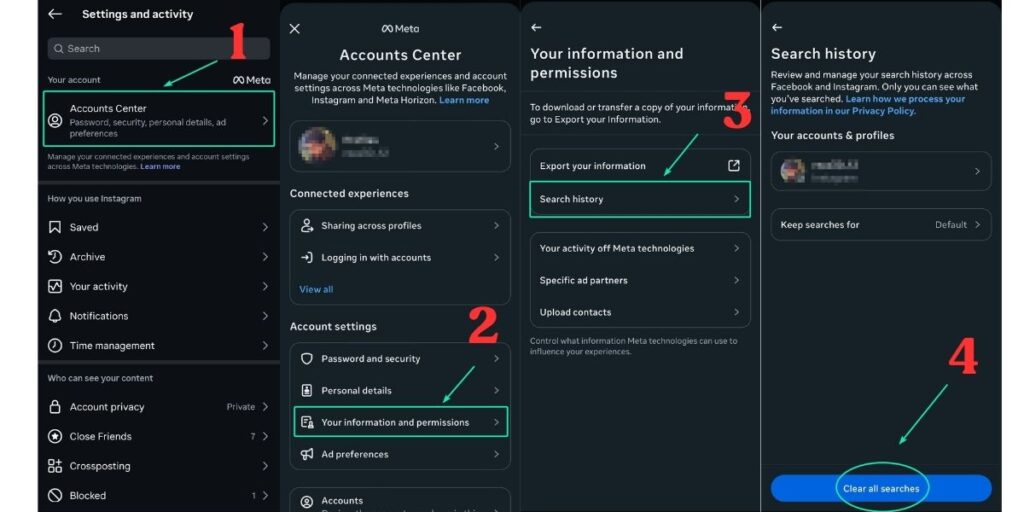
When you clear it, you remove those past entries from your search box, get a cleaner suggestions list, and give the algorithm a chance to refresh based on what you’re interested in now.
Tip: This removes entries from the visible list in the app, but recommendations may reappear if you search again or interact with related content.
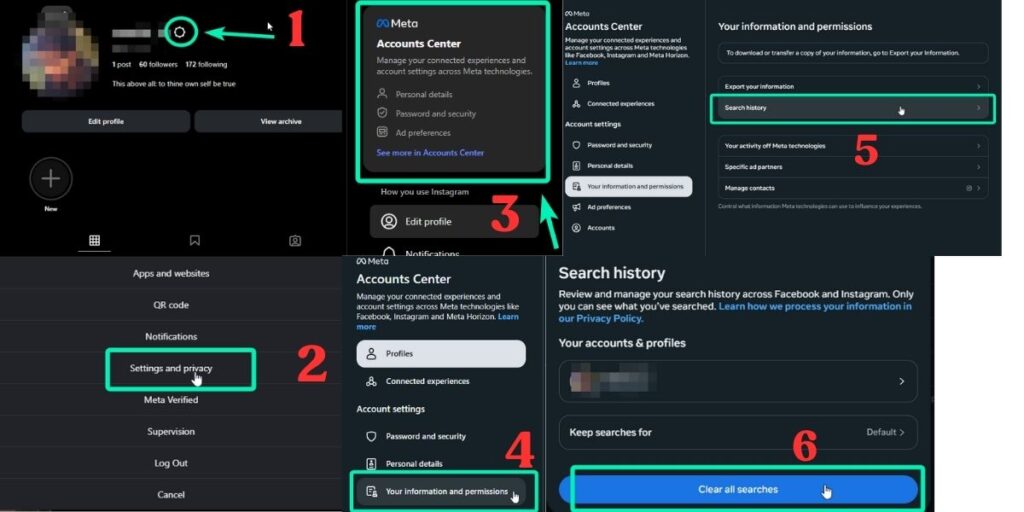
How To Clear Instagram Search History on Desktop
- Open Instagram.com on the desktop.
- Go to your profile at the top right of the page.
- Select ‘Settings’.
Account Center → Your Information and permissions → search history→ Clear all searches.
Conclusion
Clearing Instagram search suggestions can be done with two simple actions: deleting entries directly from the search bar or removing your entire history at once.
While this cleans up what you see immediately, Instagram’s algorithmic suggestions cannot be completely disabled. To keep your recommendations more accurate and private over time, pair regular clearing with a quick review of your activity, content preferences, and privacy settings.
FAQs
What’s the difference between Search Suggestions and Recent Searches on Instagram?
Search suggestions are profiles, hashtags, and places Instagram shows as you type, but recent searches are entries you personally typed or tapped earlier; those appear at the top of the search box and can be cleared.
Can I stop Instagram from showing search suggestions entirely?
No, you can’t completely disable the platform’s autofill/suggestions feature. You can remove recent entries and reset some recommendation settings, but not the suggestion mechanism.
How long does it take for cleared searches to stop appearing?
These changes are usually immediate in the app UI, but Instagram can take some time, often up to 24 hours, to propagate server-side changes fully.
 English
  Spanish