

Imagine yourself browsing Instagram, excited to see a friend’s most recent story or that popular video that everyone is talking about. However, you are left staring at a black screen or a never-ending circle instead of the movie loading. Instagram videos not playing can happen, and it is so frustrating.
Videos not playing on Instagram or other issues, like not being able to post on Instagram could be caused by several things, including software bugs and bad internet access. Fortunately, most solutions are easier than you might imagine.
In this article, we will go through each one of them and provide a solution. So let’s start.
How to Fix Instagram Videos Not Playing
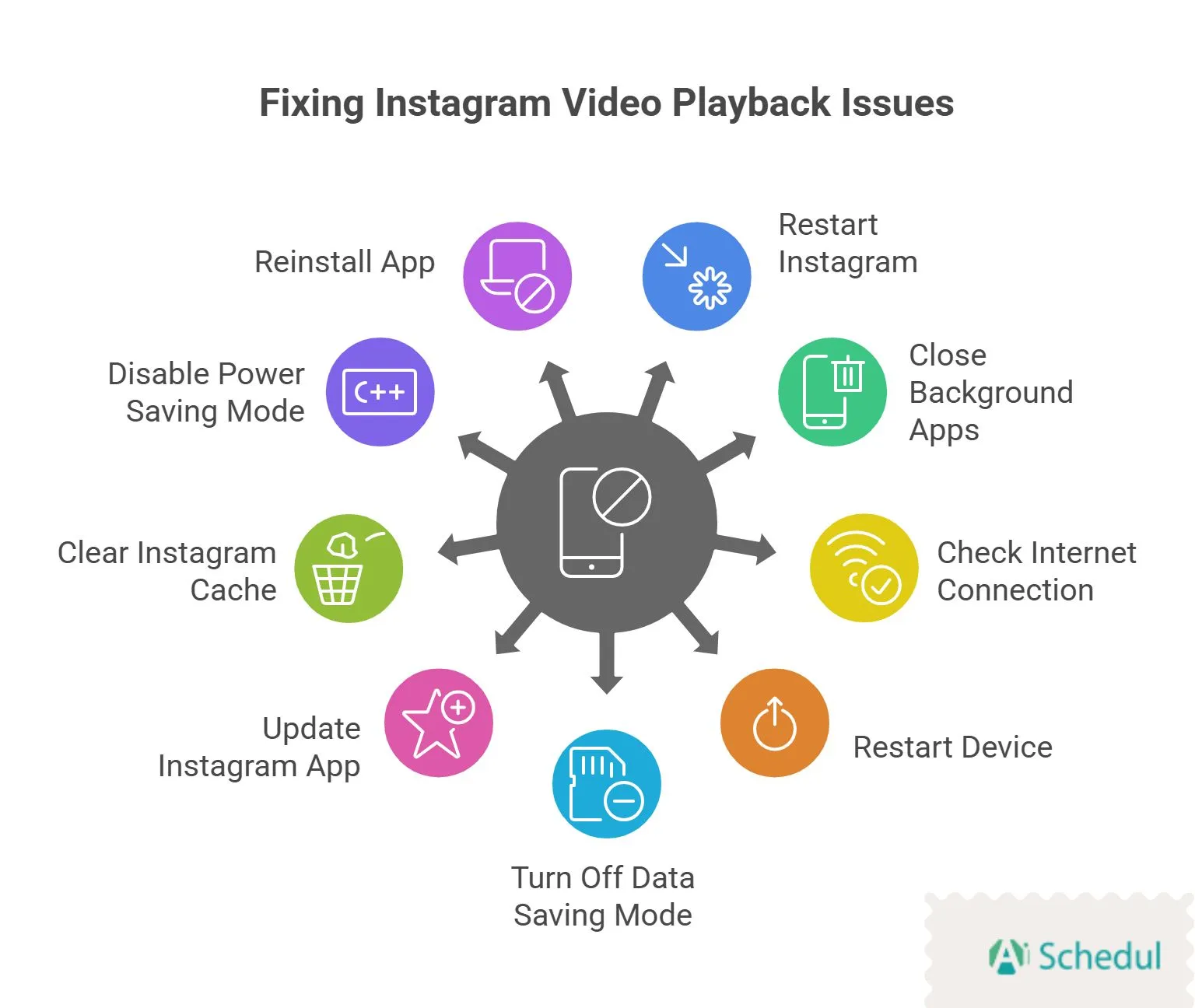
There are nine main reasons why this glitch has happened. And, there are some common solutions to fix this problem. \
To fix Instagram not playing videos, try these methods:
1. Restart Instagram
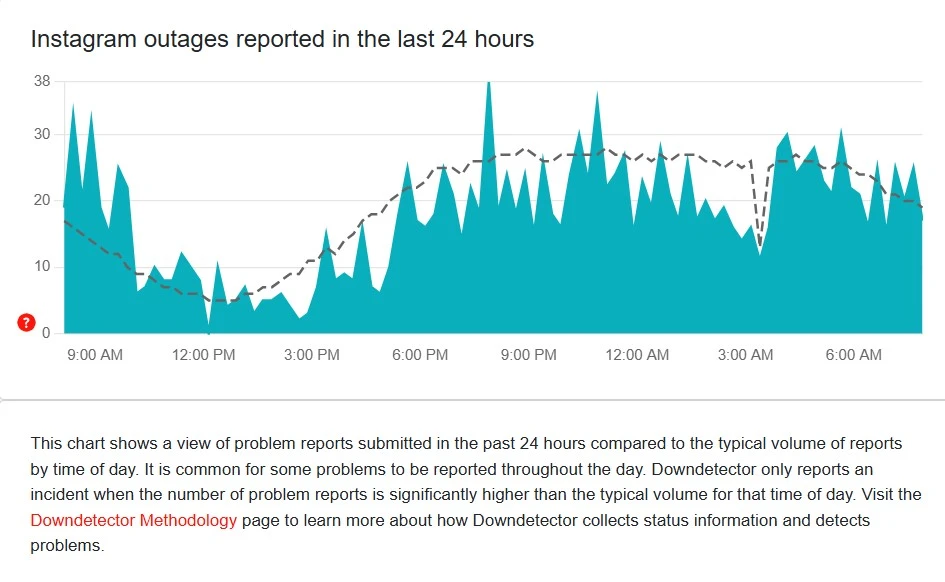
With over 2 billion users, there is a high possibility for Instagram glitches to happen now and then. This issue is usually from Instagram’s servers. You can check websites like DownDetector to see if Instagram is down and if others are experiencing similar problems with Instagram videos.
2. Close Background Apps
Close all background apps to boost the performance of your device. When multiple apps are running in the background, they can consume system resources such as memory and processing power, resulting in performance issues like Instagram videos not playing.
3. Check Your Internet Connection
Videos may not load and play on Instagram if your mobile data or Wi-Fi is poor or inconsistent. For video streaming, a solid and dependable connection is essential.
You can fix video-playing problems by changing to a more reliable network or resetting your connection.
4. Restart Your Device
After restarting Instagram and checking the internet connection, if the issue still exists, try rebooting your device. This can usually fix problems that are due to memory usage or RAM allocation.
5. Turn Off Data Saving Mode
Data Saver Mode is designed to reduce data usage by limiting background data and reducing the quality of media content. This can cause issues like Instagram not playing videos. Although this feature can be useful for saving data, it can also cause problems with Instagram video playback issues.
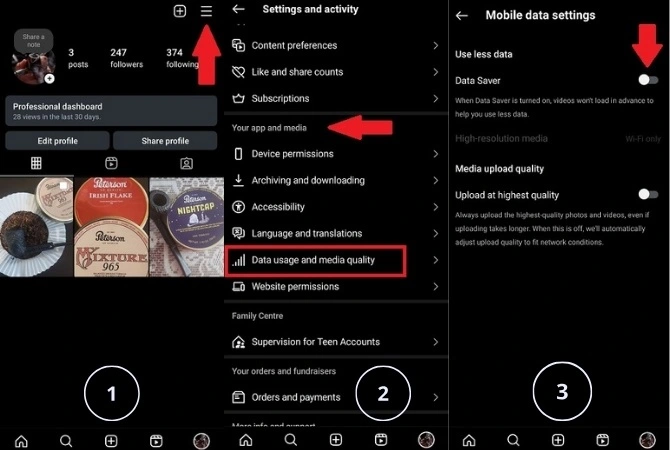
Here is how to turn Dava Saver Mode:
- Go to your Instagram profile,
- Tap on the three lines at the top right corner,
- Under the “Your App and Media” section, choose “Data usage and media quality”
- Toggle off “Data Saver.”
6. Update Your Instagram App
Make sure you have the latest Instagram version available. Sometimes, glitches like videos not playing on Instagram can be fixed with a simple app update. This is because the updated version will remove any bugs or errors.

7. Clear Instagram Cache
Cache files are like little bits of temporary data that help apps like Instagram run smoothly. But over time, these files can pile up and sometimes get corrupted, causing issues with video playback.
When this happens, videos might not play at all or could keep buffering. Clearing the cache can help fix these problems by getting rid of the old, corrupted data and making room for fresh, new data.
Here’s how to clear your Instagram cache:
- Go to your phone’s settings and open ‘Apps.’
- Choose Instagram and tap ‘Storage.’
- Finally, select ‘Clear Cache.’

8. Disable Power Saving Mode
Power-saving option usually limits app activity, use less background data, and use less processing power. This can directly affect the quality of Instagram’s video while playing. The app might not have enough resources to stream videos when power-saving mode is activated, which could result in problems like Instagram videos not playing correctly.
By disabling this option, you enable your phone to run at maximum capacity, giving Instagram the power and data it needs to fully load and play videos.
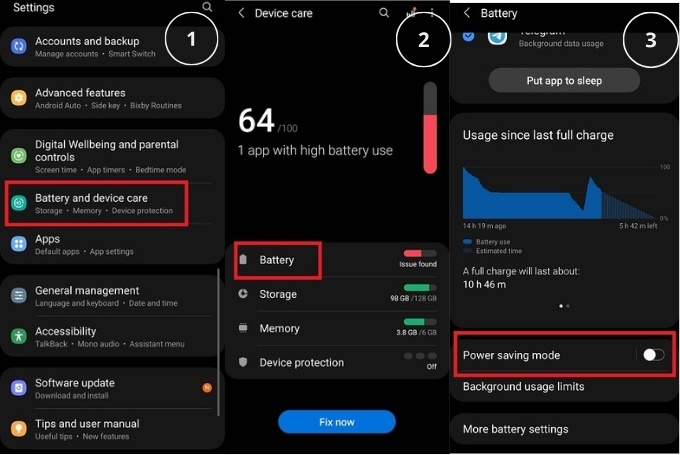
Here is how you can disable this option on your phone:
- Go to your “settings” and tap on “Battery and device care”
- Choose “Battery”
- Toggle off “Power Saving”
9. Reinstall The App
Uninstalling and reinstalling the app is another efficient way to solve Instagram videos not playing. All stored data, including any faults, glitches, or errors that might be causing problems, is removed by uninstalling.
Reinstalling Instagram ensures that any issues relating to out-of-date software or corrupted files are completely fixed and offers a clean version with the most recent upgrades and optimized settings.
Conclusion
Our goal in this article was to go through all the possible solutions for Instagram videos not playing. You can use each one of these as you see fit and try others if you didn’t get the result. Keep in mind to check Instagram’s server situation first to not waste your time on any other solutions.
FAQs
Q1. Why Are Instagram Videos Freezing?
If Instagram videos are not playing all the way on iPhone or Android devices, it is mostly due to a poor internet connection. Scroll through a few videos, then turn back to the same video. You can also hold on to the video for a couple of seconds to pause, then release it to see if it’s fixed.
Q2. Why Are My Instagram Reels Not Playing Properly?
Instagram Reels might not play properly due to poor internet connection, app bugs, data saver mode, and outdated applications.
Q3. Why Won’t Videos Play in Instagram Messages?
1. Videos might not be available in your region.
2. Videos sent from a device’s gallery might be in a format not supported by Instagram.
3. Slow or unstable internet connection.
4. Piled-up Instagram cache.Q4. Why Are Instagram Videos Not Playing Automatically?
This usually happens when autoplay is turned off in Instagram or browser settings, or when battery-saving modes restrict background activity.
Q5. Will Clearing Cache Delete My Instagram Data?
No. Clearing the app or browser cache won’t delete your Instagram account or personal files. It only removes temporary files that may be causing issues.
Q6. Why are Instagram Videos Not Loading on Chrome?
Here are some reasons why you’re Instagram video is not playing in the browser:
– Slow internet connection
– Extensions like Ad blockers, privacy tools, and VPNs,
– Full Chrome cache and cookies
– Hardware acceleration is turned on
– Not the latest version of ChromeQ7. Why Are Old Instagram Videos Not Playing?
If your old Instagram videos aren’t playing, there could be several reasons. Here are some common reasons why old Instagram videos are not playing:
– Instagram’s standard formats have changed over time, and your video doesn’t match the current format.
– Over time, video files can become corrupted, especially if they are stored or transferred multiple times.
– Sometimes, Instagram’s servers might have trouble accessing older content.
 English
  Spanish