
Learning how to hide posts on Instagram is one of the most useful tricks if you want a cleaner Instagram grid, fewer awkward photos, and more control over what others can see on your profile.
To make this clear, imagine this scenario. You have run a giveaway on Instagram, and now that it’s over, you don’t need it on your profile but still want to keep its engagement and insights. After reading this article, you can easily clear your account grid and save some of them for later use. So, let’s start.
Why Hide Posts on Instagram?
By hiding your postings rather than deleting them, you can create some kind of “private vault” of content that you can access at any moment. Additionally, without losing previous engagement, it allows you to easily clean up your profile for jobs, launches, rebrands, or even after breakups.
Here are some of the key reasons you might want to know how to hide posts on Instagram:
- Making an old feed look fresh without starting a new account.
- Removing “cringe” or outdated content while keeping the data and memories.
- Tightening privacy without destroying the entire profile
- Cleaning your Instagram’s grid alongside other account maintenance. Archive vs Delete vs Private
When learning how to hide posts on Instagram, it’s helpful to compare your options before making a decision. Here is a quick look at each of these options before we dive into a detailed explanation:
|
Option |
What it does |
Best for |
Can you undo it? |
|
Archive |
Hides a post from your profile and moves it to a private archive only you can see. |
Cleaning your grid, seasonal posts, saving for later use. |
Yes, you can unarchive and restore it with all likes and comments. |
|
Delete |
Permanently removes a post from your profile and from Instagram. |
Removing content you never want visible again. |
No, you cannot rely on getting it back. |
|
Make the account private |
Keeps your posts but limits visibility to approved followers only. |
Improving privacy and reducing random viewers and stalkers. |
Yes, you can switch back to public anytime. |
How to Hide Posts on Instagram Using Archive?
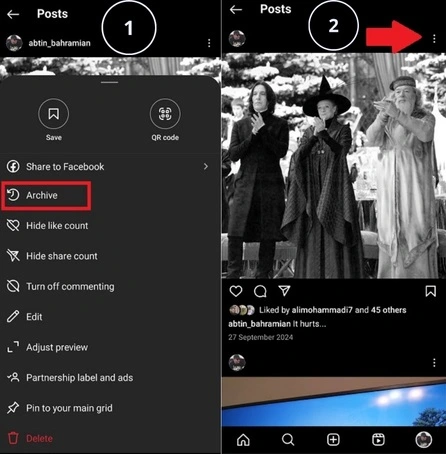
The main solution and maybe the best answer to “how to hide posts on Instagram” is the Archive feature, because you won’t lose your post and can bring it back to your Instagram grid anytime you like. To archive a single Instagram post:
- Go to your profile,
- Tap the post you want to hide,
- Hit the three dots in the top‑right corner of the post.
- Choose “Archive.”
How to Unhide Posts After Archiving
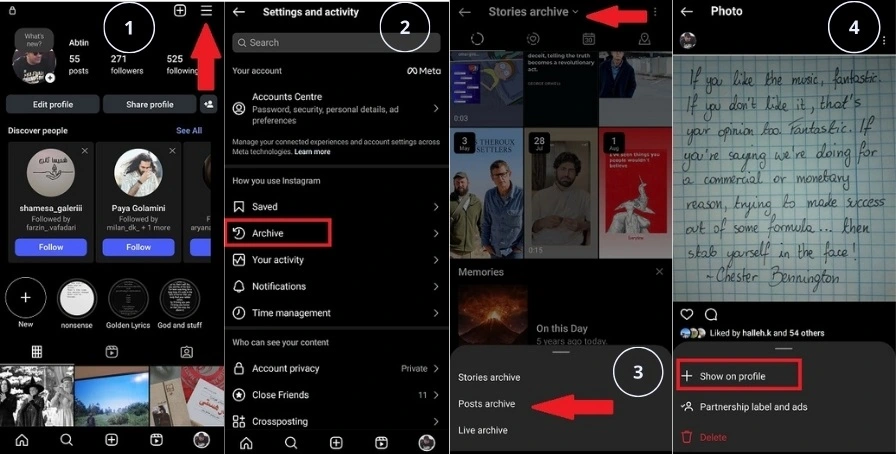
Now you need to know how to unarchive your posts if you need them on your profile again. The unarchive option restores the post with its original date, likes, and comments. Here is how to do it:
- Go to your profile and tap the three lines.
- Tap “Archive.”
- Switch the dropdown from “Stories archive” to “Posts archive.”
- Open the post you want back, tap the three dots, and choose “Show on profile.”
How to Hide Posts on Instagram Without Archiving?
Sometimes you do not need full protection for a post; you just need fewer people to see it. In that case, profile privacy tools help you hide posts from strangers without touching your archive.
These moves can help you with this situation:
- Turn your account private so only approved followers see your posts and stories.
- Remove or block followers who should not see anything at all.
- Use “Close Friends” so only a few of your chosen friends can see your stories and posts.
How to Make Your Instagram Account Private?
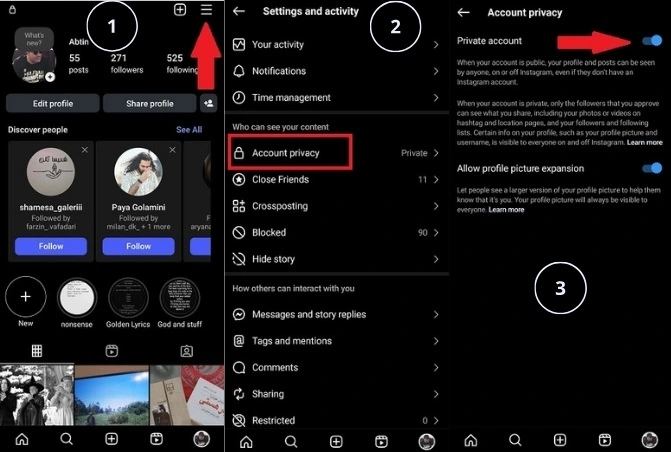
If your real goal with how to hide posts on Instagram is “stop random people seeing my life,” make the account private. This flips your profile from public to invite‑only.
To switch to a private account:
- Go to your profile menu, then tap the three lines at the top corner.
- Find “Account privacy” under the “Who can see your content” section.
- Toggle on “Private account.”
From now on, only people you approve as followers can see your posts and full stories.
How to Hide Instagram Stories From Specific People
“How to hide posts on Instagram” often really means “how do I post without my boss, parents, or ex seeing it?” Story controls give precise visibility without changing the whole account.
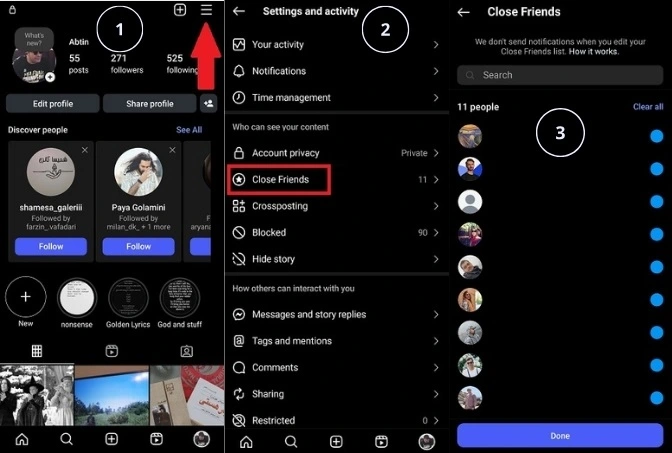
One of the most useful story privacy tools is “Close Friends”. This feature creates a small list so certain stories are visible only to that group. To set this up:
- Go to Settings from your profile.
- Choose “Close friends” under the “Who can see your account” section.
- Start adding people to your list that you consider close enough to see your stories.
How to Hide Tagged Posts on Instagram?
We all have friends who have recently learned how to tag someone on Instagram. They will tag you in all kinds of posts on Instagram, even if you want to hide your own posts and uploads. By using tag controls, you can remove these posts from your profile without starting any conflict in your friendships.
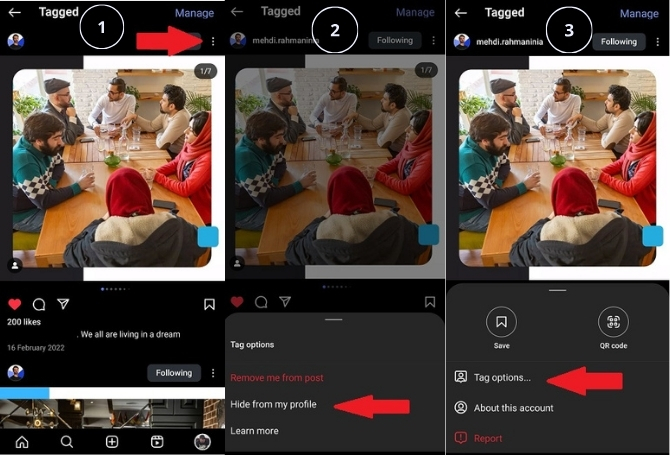
To hide a tagged post from your profile:
- Open the tagged photo where someone added you.
- Tap the three dots or tag icon, then choose “Tag options.”
- Select “Hide from my profile” to remove it from your tagged grid.
Remember that muting people on Instagram won’t work with tags. You won’t be notified about their stories or posts, but your tagged ones will always be there.
Mistakes to Avoid When Hiding Posts on Instagram
Even when you know how to hide posts on Instagram, a few common mistakes can cause stress or confusion. Avoiding them keeps your feed intact. Here are some serious mistakes you need to be careful about:
- Deleting when you meant to archive, which permanently removes the post instead of saving it for later use. Although there are ways to recover deleted Instagram posts, it’s best to be careful about it.
- Forgetting your account is still public, so even your personal posts are visible to everyone who follows you.
- Ignoring tagged photos, which can still showcase content you would never post yourself.
Conclusion
By combining archive, privacy settings, tag controls, and story tools, you get full control over how to hide posts on Instagram without losing your account history. Your Instagram account is somewhere that you post your private pictures, and not everyone must see them. So, use these techniques to control who can and who can’t see your photos.
FAQs
1. Can You Hide Posts From Certain Followers on Instagram?
Yes. There are some ways to achieve this goal. You can choose one of the following options based on the situation and your relationship with the person:
– Remove follower: quietly cut them from your audience so they no longer see private‑account posts.
– Block: completely prevents them from viewing your profile, posts, and stories or interacting with you.2. How to Hide Posts From Someone on Instagram Without Blocking?
If you only want to hide stories:
– Go to your profile and tap Menu.
– Tap “Hide story”.
– Select the person you want to hide your story from.
The other way is to remove them from your followers without blocking them. All you need to do is go to your follower list and tap on remove for the person. They won’t be notified, and they can’t see your posts anymore.3. Can I Hide All My Posts at Once on Instagram?
Instagram doesn’t offer a “hide all” option, but you can manually archive posts one by one. Third-party apps can bulk-hide posts, but you need to be careful to use legitimate ones to avoid breaking Instagram rules.
4. What Happens When I Archive a Post on Instagram?
Archived posts are hidden from your profile and only visible to you. All likes and comments remain saved, and you can unarchive the post anytime to restore it.
 English
  Spanish